Installation& use
Everything the add-in adds to Word, Excel and PowerPoint, in the order you meet it.
01Install
Save your work and fully exit all three Office applications. Run the EXE, select the components you need and choose Install. Reopen your documents. Setup will not close Office for you.
For the ZIP, extract the entire package and run Install.cmd. Both packages install the same add-ins; the x64 filename refers to the installer, and both Office architectures are inside.
02Tabs & windows
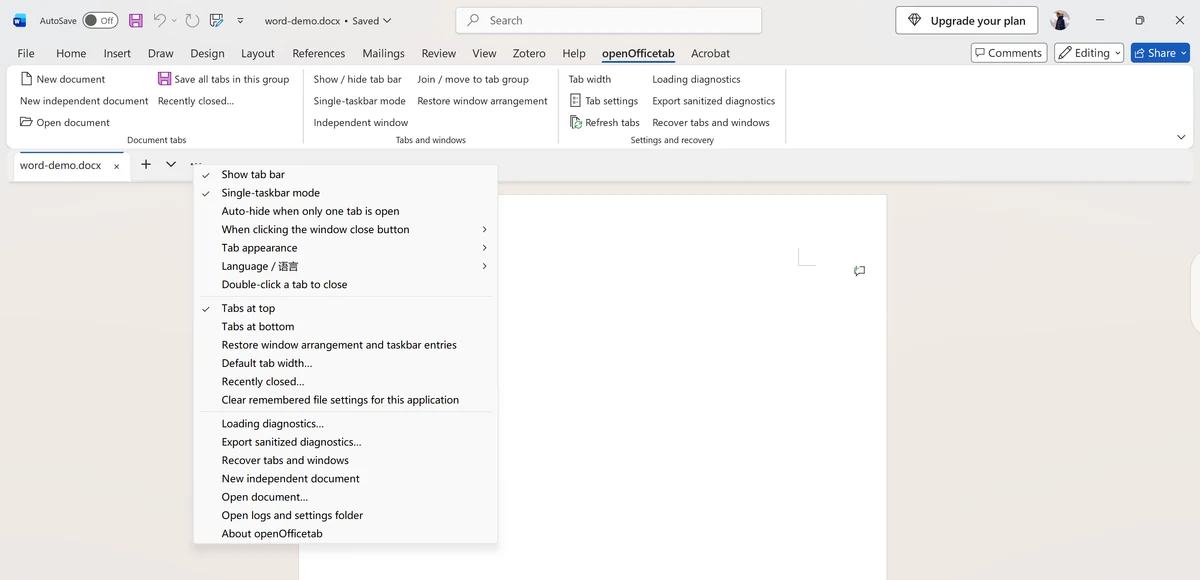
Click a tab to switch, drag to reorder, and use + to create a document. Right-click to save, Save As, or close the other tabs in the current group. Bulk actions are group-scoped and keep the native save prompts.
Drag a tab out to create a group, or onto another tab bar to merge. Show in an independent window detaches a document; Join / move to tab group on the ribbon brings it back. Groups are limited to one application instance and the current session.
03Appearance & language
Use … → Tab appearance to choose blended or separate tabs. Drag a tab’s right edge to resize it; press Esc to cancel. Saved files can remember their individual widths.
The add-in and the management center share the Follow Windows / Simplified Chinese / English preference. Website language follows the browser separately and does not read native settings. File names, paths and document contents are not translated.
04Updates
Choose Check for updates under About & updates in the management center. A separate window shows the version and notes. After you confirm, the release signature and the installer SHA-256 are verified.
Save and exit Office to finish installing. Settings are retained. Automatic download and installation are opt-in. The installer is not Windows code-signed; update-metadata signatures and code signatures are separate mechanisms.
05Diagnostics & uninstall
Open the management center from the Start menu, or from Settings and recovery on the ribbon. Under Diagnostics & repair, choose Export diagnostics and logs. Include reproduction steps, the approximate time, your Office version and architecture, and a video where useful. Reports are not uploaded automatically.
Before uninstalling, save and exit Office. Choose Uninstall in Diagnostics & repair, or run Uninstall.cmd from the ZIP. Settings and logs are kept by default. The command below also removes preferences and history; use it only when you mean to clear them.
powershell -NoProfile -File .\scripts\uninstall.ps1 -RemoveSettings06Verify the installer
Download SHA256SUMS.txt from the same release and compare it with the output of this command.
Get-FileHash .\openOfficetab-0.2.2-setup-x64.exe -Algorithm SHA256The installer is not code-signed. Check its SHA-256 before running it.
07The interface
Captured on version 0.1.7; the current download is 0.2.2.